Crypto payments are live · Save 5% when you pay with cryptoCrypto payments are live · Get 5% offReal accountsNo password needed30-day refill guarantee
;} %3C/style%3E%3Cpath class='st0' d='M89.7,52c-2.9,0.1-5.8-0.5-8.4-1.6c-2.1-0.9-4-2.5-5.2-4.4c-1.2-1.9-1.8-4.1-1.8-6.4h7.2c0,1,0.3,2,0.8,2.9 c0.6,1,1.6,1.8,2.7,2.3c1.5,0.6,3.1,0.9,4.8,0.9c1.5,0.1,3.1-0.2,4.5-0.8c1.1-0.4,2-1.1,2.7-2c0.6-0.8,0.9-1.8,0.9-2.9 c0-1.3-0.6-2.5-1.7-3.2c-1.6-1-3.4-1.5-5.3-1.5L87.4,35c-3.2-0.1-6.2-1.3-8.6-3.4c-2.2-2-3.3-4.8-3.2-7.7c-0.1-2.2,0.5-4.4,1.7-6.2 c1.2-1.8,2.8-3.1,4.8-4c4.7-1.9,9.9-1.9,14.6,0.1c2,0.9,3.6,2.4,4.8,4.2c1.2,1.9,1.7,4.1,1.7,6.4H96c0-1-0.2-2-0.7-2.8 c-0.5-0.9-1.3-1.7-2.3-2.1c-1.2-0.6-2.5-0.9-3.8-0.8c-1.2,0-2.5,0.2-3.6,0.8c-0.9,0.4-1.6,1.1-2.1,2C83,22.1,82.8,23,82.8,24 c0,1.1,0.5,2.2,1.3,3c1.1,1,2.6,1.5,4.1,1.5l3.2,0.3c2.4,0.1,4.8,0.7,7.1,1.7c1.9,0.8,3.5,2.1,4.7,3.8c1.2,1.7,1.8,3.7,1.7,5.7 c0,2.2-0.6,4.4-1.9,6.3c-1.3,1.9-3.2,3.3-5.3,4.2C95.2,51.5,92.4,52.1,89.7,52z'/%3E%3Cpath class='st0' d='M124.3,52c-2.2,0-4.5-0.4-6.6-1.2c-1.8-0.7-3.4-1.8-4.8-3.2c-1.3-1.3-2.3-2.9-2.9-4.6c-0.7-1.7-1-3.6-1-5.4 v-1.1c0-1.9,0.3-3.8,1-5.5c1.4-3.6,4.3-6.4,7.9-7.8c2-0.8,4.2-1.2,6.4-1.2c2.2,0,4.4,0.4,6.4,1.2c1.8,0.7,3.5,1.8,4.8,3.2 c1.3,1.3,2.3,2.9,3,4.6c0.7,1.7,1,3.6,1,5.5v1.1c0,1.9-0.3,3.7-1,5.4c-0.7,1.7-1.7,3.3-3,4.6c-1.4,1.4-3,2.5-4.8,3.2 C128.7,51.6,126.5,52,124.3,52z M124.3,45.9c1.5,0.1,3.1-0.4,4.4-1.2c1.2-0.8,2.2-1.9,2.8-3.1c0.7-1.4,1-3,0.9-4.5 c0-1.6-0.3-3.1-1-4.5c-0.6-1.3-1.6-2.4-2.8-3.2c-1.3-0.8-2.8-1.2-4.3-1.2c-1.5,0-3.1,0.4-4.4,1.2c-1.2,0.8-2.2,1.9-2.8,3.2 c-0.7,1.4-1,3-1,4.5c0,1.6,0.3,3.1,1,4.5c0.6,1.3,1.6,2.4,2.8,3.1C121.2,45.5,122.7,45.9,124.3,45.9L124.3,45.9z'/%3E%3Cpath class='st0' d='M157.1,52c-2.2,0-4.3-0.4-6.3-1.2c-1.7-0.8-3.2-1.9-4.4-3.3c-1.2-1.4-2.1-3-2.6-4.7c-0.6-1.7-0.9-3.5-0.9-5.3 v-1c0-1.9,0.3-3.7,0.9-5.4c0.6-1.7,1.5-3.3,2.7-4.6c1.2-1.4,2.7-2.5,4.4-3.2c4.1-1.7,8.7-1.6,12.8,0.2c1.9,0.9,3.5,2.2,4.6,3.9 c1.2,1.7,1.8,3.8,1.9,5.9h-7c-0.2-1.4-0.8-2.6-1.8-3.6c-1.2-1-2.8-1.6-4.3-1.5c-1.4,0-2.7,0.4-3.9,1.1c-1.1,0.8-1.9,1.9-2.4,3.1 c-0.5,1.5-0.8,3-0.8,4.5c0,1.5,0.2,3.1,0.8,4.5c0.4,1.3,1.2,2.4,2.3,3.2c1.2,0.8,2.6,1.2,4,1.1c1.1,0,2.2-0.2,3.2-0.7 c0.9-0.4,1.6-1.1,2.1-1.9c0.6-0.8,0.9-1.7,1-2.7h7c-0.1,2.1-0.8,4.2-2,6c-1.2,1.7-2.8,3.1-4.7,4C161.7,51.6,159.4,52.1,157.1,52z'/%3E%3Cpath class='st0' d='M172.4,28.4V23h11.1v5.4L172.4,28.4z M178.9,19.7c-1.1,0.1-2.3-0.3-3.1-1.1c-0.7-0.8-1-1.8-1-2.8 c0-1,0.3-2,1-2.8c0.8-0.8,2-1.2,3.1-1.1c1.1-0.1,2.3,0.3,3.1,1.1c0.7,0.8,1,1.8,1,2.8c0,1-0.3,2-1,2.8 C181.2,19.4,180,19.8,178.9,19.7z M176.3,51V23h7.2v28H176.3z'/%3E%3Cpath class='st0' d='M197.7,51.7c-1.8,0-3.6-0.3-5.3-1.1c-1.5-0.7-2.7-1.7-3.5-3.1c-0.9-1.5-1.3-3.1-1.3-4.8 c-0.1-1.8,0.4-3.6,1.5-5.1c1.1-1.4,2.6-2.4,4.3-2.9c2.1-0.7,4.3-1,6.5-1h6.4V38h-6.6c-1.4-0.1-2.7,0.3-3.8,1.2 c-1.7,1.7-1.8,4.4-0.1,6.1c0,0,0.1,0.1,0.1,0.1c1.1,0.9,2.4,1.3,3.8,1.2c0.9,0,1.9-0.2,2.8-0.5c0.9-0.4,1.6-1,2.1-1.8 c0.6-1.1,0.9-2.3,0.9-3.6l1.8,2c-0.1,1.8-0.6,3.5-1.4,5c-0.7,1.3-1.9,2.4-3.2,3.1C201.2,51.4,199.4,51.8,197.7,51.7z M206.7,51v-8.3 h-1.2v-9.2c0.1-1.3-0.3-2.6-1.2-3.6c-1-0.9-2.3-1.3-3.6-1.2c-0.9,0-1.9,0-3.1,0l-3.6,0.1c-1.2,0.1-2.3,0.1-3.3,0.2v-6l2.6-0.2 c1-0.1,2-0.1,3.1-0.1s2.1,0,3,0c2.4-0.1,4.9,0.3,7.2,1.1c1.8,0.7,3.3,1.9,4.3,3.5c1.1,2,1.6,4.2,1.5,6.4V51L206.7,51z'/%3E%3Cpath class='st0' d='M215.3,18.7v-5.4H226v5.4H215.3z M218.8,51V13.4h7.2V51H218.8z'/%3E%3Cpath class='st1' d='M232.8,51V13.1h7.3V51H232.8z M239.1,39.5v-6.3h7.3c1.3,0,2.6-0.3,3.7-0.9c1-0.6,1.8-1.4,2.4-2.4 c0.6-1.1,0.8-2.3,0.8-3.5c0-1.3-0.3-2.5-0.8-3.6c-0.5-1-1.3-1.8-2.4-2.4c-1.1-0.6-2.4-0.9-3.7-0.9h-7.3v-6.3h6.7 c2.8-0.1,5.5,0.4,8.1,1.5c2.1,0.9,3.9,2.5,5.1,4.4c1.2,2.1,1.8,4.4,1.8,6.8v0.8c0.1,2.4-0.5,4.7-1.8,6.8c-1.2,2-3,3.5-5.1,4.4 c-2.5,1.1-5.3,1.6-8.1,1.5L239.1,39.5z'/%3E%3Cpath class='st1' d='M271.8,51.7c-1.8,0-3.6-0.3-5.3-1.1c-1.5-0.7-2.7-1.7-3.5-3.1c-0.9-1.5-1.3-3.1-1.3-4.8 c-0.1-1.8,0.4-3.6,1.5-5.1c1.1-1.4,2.6-2.4,4.3-2.9c2.1-0.7,4.3-1,6.5-1h6.4V38h-6.5c-1.4-0.1-2.7,0.3-3.8,1.2 c-1.7,1.7-1.8,4.4-0.1,6.1c0,0,0.1,0.1,0.1,0.1c1.1,0.9,2.4,1.3,3.8,1.2c0.9,0,1.9-0.2,2.8-0.5c0.9-0.4,1.6-1,2.1-1.8 c0.6-1.1,0.9-2.3,0.9-3.6l1.8,2c-0.1,1.8-0.6,3.5-1.4,5c-0.7,1.3-1.9,2.4-3.2,3.1C275.2,51.4,273.5,51.8,271.8,51.7z M280.8,51v-8.3 h-1.2v-9.2c0.1-1.3-0.3-2.6-1.2-3.6c-1-0.9-2.3-1.3-3.6-1.2c-0.9,0-1.9,0-3.1,0l-3.6,0.1c-1.2,0.1-2.3,0.1-3.3,0.2v-6l2.6-0.2 c1-0.1,2-0.1,3.1-0.1s2.1,0,3,0c2.4-0.1,4.9,0.3,7.2,1.1c1.8,0.7,3.3,1.9,4.3,3.6c1.1,2,1.6,4.2,1.5,6.4V51L280.8,51z'/%3E%3Cpath class='st1' d='M292.6,51V23h5.7v12h-0.5c-0.1-2.4,0.3-4.9,1.1-7.1c0.6-1.8,1.8-3.3,3.4-4.3c1.7-1,3.6-1.5,5.6-1.5h0.3 c3.3,0,5.9,1.1,7.6,3.2s2.6,5.4,2.6,9.6v16h-7.2V34.3c0.1-1.5-0.5-3-1.5-4.2c-1-1.1-2.5-1.7-4-1.6c-1.6-0.1-3.1,0.5-4.3,1.6 c-1.1,1.2-1.7,2.7-1.6,4.3V51H292.6z'/%3E%3Cpath class='st1' d='M336.2,51.9c-1.9,0-3.7-0.3-5.4-1.1c-1.6-0.7-3.1-1.7-4.3-3c-1.2-1.3-2.2-2.9-2.8-4.6c-0.7-1.8-1-3.7-1-5.7 v-1.1c0-1.9,0.3-3.8,0.9-5.6c0.6-1.7,1.5-3.3,2.7-4.6c1.2-1.3,2.6-2.4,4.2-3.1c1.7-0.8,3.6-1.1,5.4-1.1c2,0,4,0.4,5.8,1.4 c1.7,1,3.1,2.5,4,4.2c1.1,2.2,1.6,4.7,1.6,7.1l-2.1-2.4V13.4h7.2V51h-5.7V39.2h1.3c0,2.5-0.6,4.9-1.8,7.1c-1,1.8-2.4,3.3-4.2,4.3 C340.2,51.5,338.2,52,336.2,51.9z M337.8,45.9c1.3,0,2.7-0.3,3.9-1c1.2-0.7,2.1-1.6,2.8-2.8c0.7-1.3,1.1-2.8,1.1-4.3v-2.1 c0-1.5-0.3-2.9-1.1-4.1c-0.7-1.1-1.7-2-2.8-2.6c-1.2-0.6-2.5-0.9-3.8-0.9c-1.4,0-2.9,0.4-4.1,1.1c-1.2,0.8-2.2,1.8-2.8,3.1 c-0.7,1.5-1,3.1-1,4.7c0,1.6,0.3,3.2,1,4.7c0.6,1.3,1.6,2.3,2.8,3.1C334.9,45.6,336.3,45.9,337.8,45.9L337.8,45.9z'/%3E%3Cpath class='st1' d='M367,51.7c-1.8,0-3.6-0.3-5.3-1.1c-1.5-0.7-2.7-1.7-3.5-3.1c-0.9-1.5-1.3-3.1-1.3-4.8c-0.1-1.8,0.4-3.6,1.5-5.1 c1.1-1.4,2.6-2.4,4.3-2.9c2.1-0.7,4.3-1,6.5-1h6.4V38H369c-1.4-0.1-2.7,0.3-3.8,1.2c-1.7,1.7-1.8,4.4-0.1,6.1c0,0,0.1,0.1,0.1,0.1 c1.1,0.9,2.4,1.3,3.8,1.2c0.9,0,1.9-0.2,2.8-0.5c0.9-0.4,1.6-1,2.1-1.8c0.6-1.1,0.9-2.3,0.9-3.6l1.8,2c-0.1,1.8-0.6,3.5-1.4,5 c-0.7,1.3-1.8,2.3-3.1,3C370.4,51.4,368.7,51.8,367,51.7z M376,51v-8.3h-1.2v-9.2c0.1-1.3-0.3-2.6-1.2-3.6c-1-0.9-2.3-1.3-3.6-1.2 c-0.9,0-1.9,0-3.1,0l-3.6,0.1c-1.2,0.1-2.3,0.1-3.3,0.2v-6l2.7-0.2c1-0.1,2-0.1,3.1-0.1s2.1,0,3,0c2.4-0.1,4.9,0.3,7.2,1.1 c1.8,0.7,3.3,1.9,4.3,3.6c1.1,2,1.6,4.2,1.5,6.4V51L376,51z'/%3E%3Cg id='_Group_'%3E%3Cpath class='st0' d='M23.3,0h17.3c12.9,0,23.3,10.4,23.3,23.3v17.3c0,12.9-10.4,23.3-23.3,23.3H23.3C10.4,63.9,0,53.4,0,40.6V23.3 C0,10.4,10.4,0,23.3,0z'/%3E%3C/g%3E%3Cg id='_Group_2'%3E%3Cpath class='st2' d='M63.9,35.7v4.9c0,12.9-10.4,23.3-23.3,23.3H29L11.5,46.3L52,24L63.9,35.7z'/%3E%3C/g%3E%3Cpath class='st1' d='M31.9,52.8c-7,0-12.2-1-16.1-3.1c-2.4-1.2-4.4-3-5.8-5.3c-1.5-2.5-2.2-5.3-2.1-8.2c0-6,2.6-11.8,7.2-15.8 c4.6-4.2,10.7-6.4,16.9-6.4c6.2,0,12.2,2.2,16.9,6.4c4.5,4,7.2,9.7,7.2,15.8c0.1,2.9-0.7,5.7-2.1,8.2c-1.4,2.3-3.4,4.1-5.8,5.3 C44.2,51.7,38.9,52.8,31.9,52.8z'/%3E%3ClinearGradient id='SVGID_1_' gradientUnits='userSpaceOnUse' x1='18.6133' y1='42.5239' x2='46.8733' y2='18.1239' gradientTransform='matrix(1 0 0 -1 0 66)'%3E%3Cstop offset='0' style='stop-color:%23FFFFFF'/%3E%3Cstop offset='0.57' style='stop-color:%23FDFDFD'/%3E%3Cstop offset='0.84' style='stop-color:%23F5F5F5'/%3E%3Cstop offset='1' style='stop-color:%23ECECEC'/%3E%3C/linearGradient%3E%3Cpath class='st3' d='M52.4,36.1c0,10.2-9.1,13-20.4,13s-20.4-2.8-20.4-13s9.1-18.5,20.4-18.5S52.4,25.9,52.4,36.1z'/%3E%3Cpath class='st1' d='M36.2,40.3c0,1.5-1.9,2.8-4.2,2.8s-4.2-1.3-4.2-2.8s1.9-1.9,4.2-1.9S36.2,38.8,36.2,40.3z'/%3E%3Cpath class='st1' d='M44.2,28.9c-2.8-2.8-6.6-3.5-8.4-1.7s0,4.5,2.8,7.3s5.5,4.7,7.3,2.8S47,31.7,44.2,28.9z'/%3E%3Cpath class='st1' d='M50.9,13.4c-3.6-2.8-8.1-3.1-10-0.7s0.7,5.2,4.3,8s7,4.5,8.8,2.1S54.5,16.2,50.9,13.4z'/%3E%3Cpath class='st1' d='M13,13.4c3.6-2.8,8.1-3.1,10-0.7s-0.7,5.2-4.3,8s-7,4.5-8.8,2.1S9.3,16.2,13,13.4z'/%3E%3Cpath class='st1' d='M19.6,28.9c-2.8,2.8-3.5,6.6-1.7,8.4s4.5,0,7.3-2.8s4.6-5.5,2.8-7.3S22.4,26.1,19.6,28.9z'/%3E%3C/svg%3E)
30-day refill guaranteeNo password needed
30-day refill guaranteeNo password needed
A YouTube tags generator saves time on every upload. Here are the most useful ways creators use ours.

Before you hit Publish, paste your title into the tag generator, check the list and copy it into YouTube Studio. It takes less than a minute.
Remove any tag that doesn’t really describe your video. A short list of accurate tags is better than a long list of loose ones.

Many creators skip tags on older uploads. Go to Content in YouTube Studio, open a video, click Show more and add the tags from our generator.
Start with your most-watched videos. They already get views, so clear details help YouTube keep showing them to the right people.

Pick YouTube Short as the video type and the generator adds Shorts-friendly tags, plus a #shorts hashtag for your description.
Shorts move fast, so keep the list short and focused on what the clip is about.
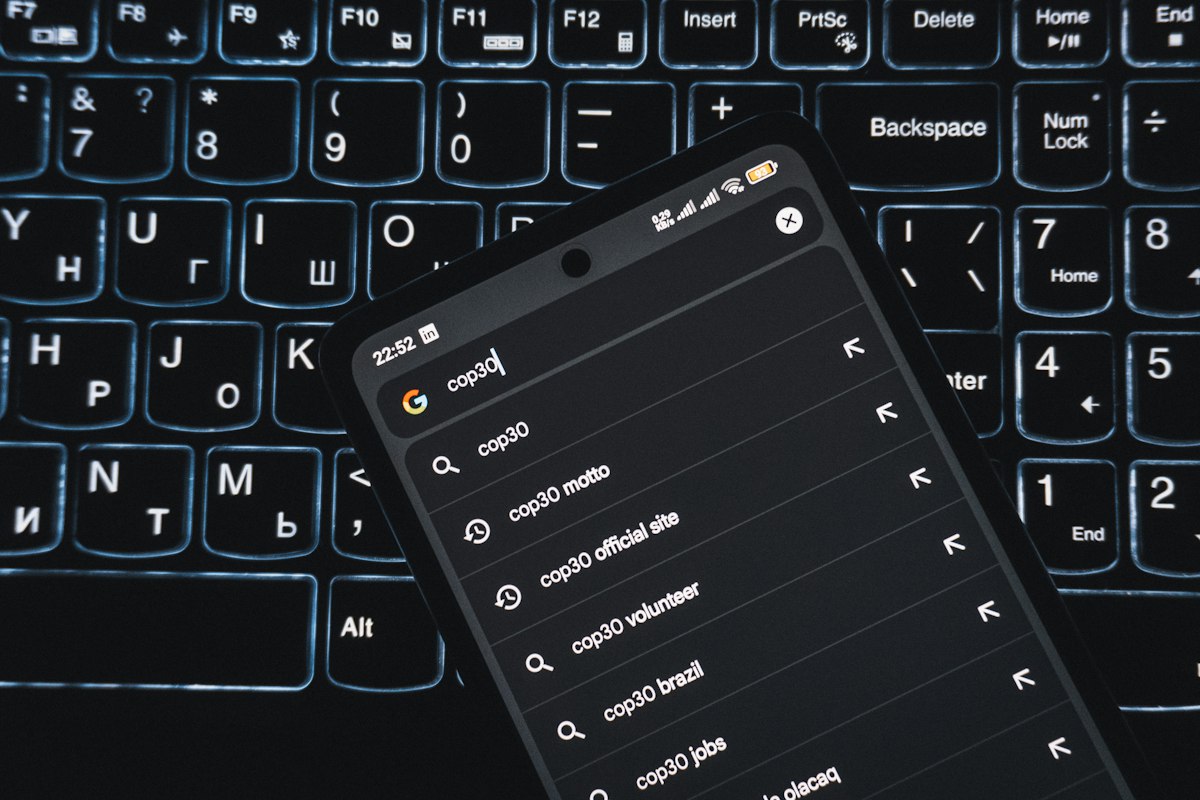
YouTube says tags help most when your topic is often misspelled. Think of names like “Nietzsche” or “charcuterie” that people get wrong.
Type the common misspellings into the Add your own tag box. They are added to your list and the counter updates.

People search for the same thing in different ways, like “sourdough bread” and “homemade bread”. Our tags include the short phrases from your title and the common words for your topic.
Use the list for ideas too. Tags that keep coming up can make great titles for your next videos.

YouTube tags are words and short phrases you add to a video to describe what it’s about. Viewers don’t see them on the video page. They help YouTube understand your video, mainly when people search for it with a spelling mistake.
Think of tags as the finishing touch. A clear title and a great thumbnail do most of the work.

Tags live in YouTube Studio, a little hidden below your title and description. Here’s how to add them on a computer:
Where do hashtags go? Put up to 3 hashtags at the end of your description. YouTube can show them above your title. Don’t add more than 60, or YouTube ignores them all.
Need a new thumbnail too? Try our YouTube thumbnail resizer.