Crypto payments are live · Save 5% when you pay with cryptoCrypto payments are live · Get 5% offReal accountsNo password needed30-day refill guarantee
;} %3C/style%3E%3Cpath class='st0' d='M89.7,52c-2.9,0.1-5.8-0.5-8.4-1.6c-2.1-0.9-4-2.5-5.2-4.4c-1.2-1.9-1.8-4.1-1.8-6.4h7.2c0,1,0.3,2,0.8,2.9 c0.6,1,1.6,1.8,2.7,2.3c1.5,0.6,3.1,0.9,4.8,0.9c1.5,0.1,3.1-0.2,4.5-0.8c1.1-0.4,2-1.1,2.7-2c0.6-0.8,0.9-1.8,0.9-2.9 c0-1.3-0.6-2.5-1.7-3.2c-1.6-1-3.4-1.5-5.3-1.5L87.4,35c-3.2-0.1-6.2-1.3-8.6-3.4c-2.2-2-3.3-4.8-3.2-7.7c-0.1-2.2,0.5-4.4,1.7-6.2 c1.2-1.8,2.8-3.1,4.8-4c4.7-1.9,9.9-1.9,14.6,0.1c2,0.9,3.6,2.4,4.8,4.2c1.2,1.9,1.7,4.1,1.7,6.4H96c0-1-0.2-2-0.7-2.8 c-0.5-0.9-1.3-1.7-2.3-2.1c-1.2-0.6-2.5-0.9-3.8-0.8c-1.2,0-2.5,0.2-3.6,0.8c-0.9,0.4-1.6,1.1-2.1,2C83,22.1,82.8,23,82.8,24 c0,1.1,0.5,2.2,1.3,3c1.1,1,2.6,1.5,4.1,1.5l3.2,0.3c2.4,0.1,4.8,0.7,7.1,1.7c1.9,0.8,3.5,2.1,4.7,3.8c1.2,1.7,1.8,3.7,1.7,5.7 c0,2.2-0.6,4.4-1.9,6.3c-1.3,1.9-3.2,3.3-5.3,4.2C95.2,51.5,92.4,52.1,89.7,52z'/%3E%3Cpath class='st0' d='M124.3,52c-2.2,0-4.5-0.4-6.6-1.2c-1.8-0.7-3.4-1.8-4.8-3.2c-1.3-1.3-2.3-2.9-2.9-4.6c-0.7-1.7-1-3.6-1-5.4 v-1.1c0-1.9,0.3-3.8,1-5.5c1.4-3.6,4.3-6.4,7.9-7.8c2-0.8,4.2-1.2,6.4-1.2c2.2,0,4.4,0.4,6.4,1.2c1.8,0.7,3.5,1.8,4.8,3.2 c1.3,1.3,2.3,2.9,3,4.6c0.7,1.7,1,3.6,1,5.5v1.1c0,1.9-0.3,3.7-1,5.4c-0.7,1.7-1.7,3.3-3,4.6c-1.4,1.4-3,2.5-4.8,3.2 C128.7,51.6,126.5,52,124.3,52z M124.3,45.9c1.5,0.1,3.1-0.4,4.4-1.2c1.2-0.8,2.2-1.9,2.8-3.1c0.7-1.4,1-3,0.9-4.5 c0-1.6-0.3-3.1-1-4.5c-0.6-1.3-1.6-2.4-2.8-3.2c-1.3-0.8-2.8-1.2-4.3-1.2c-1.5,0-3.1,0.4-4.4,1.2c-1.2,0.8-2.2,1.9-2.8,3.2 c-0.7,1.4-1,3-1,4.5c0,1.6,0.3,3.1,1,4.5c0.6,1.3,1.6,2.4,2.8,3.1C121.2,45.5,122.7,45.9,124.3,45.9L124.3,45.9z'/%3E%3Cpath class='st0' d='M157.1,52c-2.2,0-4.3-0.4-6.3-1.2c-1.7-0.8-3.2-1.9-4.4-3.3c-1.2-1.4-2.1-3-2.6-4.7c-0.6-1.7-0.9-3.5-0.9-5.3 v-1c0-1.9,0.3-3.7,0.9-5.4c0.6-1.7,1.5-3.3,2.7-4.6c1.2-1.4,2.7-2.5,4.4-3.2c4.1-1.7,8.7-1.6,12.8,0.2c1.9,0.9,3.5,2.2,4.6,3.9 c1.2,1.7,1.8,3.8,1.9,5.9h-7c-0.2-1.4-0.8-2.6-1.8-3.6c-1.2-1-2.8-1.6-4.3-1.5c-1.4,0-2.7,0.4-3.9,1.1c-1.1,0.8-1.9,1.9-2.4,3.1 c-0.5,1.5-0.8,3-0.8,4.5c0,1.5,0.2,3.1,0.8,4.5c0.4,1.3,1.2,2.4,2.3,3.2c1.2,0.8,2.6,1.2,4,1.1c1.1,0,2.2-0.2,3.2-0.7 c0.9-0.4,1.6-1.1,2.1-1.9c0.6-0.8,0.9-1.7,1-2.7h7c-0.1,2.1-0.8,4.2-2,6c-1.2,1.7-2.8,3.1-4.7,4C161.7,51.6,159.4,52.1,157.1,52z'/%3E%3Cpath class='st0' d='M172.4,28.4V23h11.1v5.4L172.4,28.4z M178.9,19.7c-1.1,0.1-2.3-0.3-3.1-1.1c-0.7-0.8-1-1.8-1-2.8 c0-1,0.3-2,1-2.8c0.8-0.8,2-1.2,3.1-1.1c1.1-0.1,2.3,0.3,3.1,1.1c0.7,0.8,1,1.8,1,2.8c0,1-0.3,2-1,2.8 C181.2,19.4,180,19.8,178.9,19.7z M176.3,51V23h7.2v28H176.3z'/%3E%3Cpath class='st0' d='M197.7,51.7c-1.8,0-3.6-0.3-5.3-1.1c-1.5-0.7-2.7-1.7-3.5-3.1c-0.9-1.5-1.3-3.1-1.3-4.8 c-0.1-1.8,0.4-3.6,1.5-5.1c1.1-1.4,2.6-2.4,4.3-2.9c2.1-0.7,4.3-1,6.5-1h6.4V38h-6.6c-1.4-0.1-2.7,0.3-3.8,1.2 c-1.7,1.7-1.8,4.4-0.1,6.1c0,0,0.1,0.1,0.1,0.1c1.1,0.9,2.4,1.3,3.8,1.2c0.9,0,1.9-0.2,2.8-0.5c0.9-0.4,1.6-1,2.1-1.8 c0.6-1.1,0.9-2.3,0.9-3.6l1.8,2c-0.1,1.8-0.6,3.5-1.4,5c-0.7,1.3-1.9,2.4-3.2,3.1C201.2,51.4,199.4,51.8,197.7,51.7z M206.7,51v-8.3 h-1.2v-9.2c0.1-1.3-0.3-2.6-1.2-3.6c-1-0.9-2.3-1.3-3.6-1.2c-0.9,0-1.9,0-3.1,0l-3.6,0.1c-1.2,0.1-2.3,0.1-3.3,0.2v-6l2.6-0.2 c1-0.1,2-0.1,3.1-0.1s2.1,0,3,0c2.4-0.1,4.9,0.3,7.2,1.1c1.8,0.7,3.3,1.9,4.3,3.5c1.1,2,1.6,4.2,1.5,6.4V51L206.7,51z'/%3E%3Cpath class='st0' d='M215.3,18.7v-5.4H226v5.4H215.3z M218.8,51V13.4h7.2V51H218.8z'/%3E%3Cpath class='st1' d='M232.8,51V13.1h7.3V51H232.8z M239.1,39.5v-6.3h7.3c1.3,0,2.6-0.3,3.7-0.9c1-0.6,1.8-1.4,2.4-2.4 c0.6-1.1,0.8-2.3,0.8-3.5c0-1.3-0.3-2.5-0.8-3.6c-0.5-1-1.3-1.8-2.4-2.4c-1.1-0.6-2.4-0.9-3.7-0.9h-7.3v-6.3h6.7 c2.8-0.1,5.5,0.4,8.1,1.5c2.1,0.9,3.9,2.5,5.1,4.4c1.2,2.1,1.8,4.4,1.8,6.8v0.8c0.1,2.4-0.5,4.7-1.8,6.8c-1.2,2-3,3.5-5.1,4.4 c-2.5,1.1-5.3,1.6-8.1,1.5L239.1,39.5z'/%3E%3Cpath class='st1' d='M271.8,51.7c-1.8,0-3.6-0.3-5.3-1.1c-1.5-0.7-2.7-1.7-3.5-3.1c-0.9-1.5-1.3-3.1-1.3-4.8 c-0.1-1.8,0.4-3.6,1.5-5.1c1.1-1.4,2.6-2.4,4.3-2.9c2.1-0.7,4.3-1,6.5-1h6.4V38h-6.5c-1.4-0.1-2.7,0.3-3.8,1.2 c-1.7,1.7-1.8,4.4-0.1,6.1c0,0,0.1,0.1,0.1,0.1c1.1,0.9,2.4,1.3,3.8,1.2c0.9,0,1.9-0.2,2.8-0.5c0.9-0.4,1.6-1,2.1-1.8 c0.6-1.1,0.9-2.3,0.9-3.6l1.8,2c-0.1,1.8-0.6,3.5-1.4,5c-0.7,1.3-1.9,2.4-3.2,3.1C275.2,51.4,273.5,51.8,271.8,51.7z M280.8,51v-8.3 h-1.2v-9.2c0.1-1.3-0.3-2.6-1.2-3.6c-1-0.9-2.3-1.3-3.6-1.2c-0.9,0-1.9,0-3.1,0l-3.6,0.1c-1.2,0.1-2.3,0.1-3.3,0.2v-6l2.6-0.2 c1-0.1,2-0.1,3.1-0.1s2.1,0,3,0c2.4-0.1,4.9,0.3,7.2,1.1c1.8,0.7,3.3,1.9,4.3,3.6c1.1,2,1.6,4.2,1.5,6.4V51L280.8,51z'/%3E%3Cpath class='st1' d='M292.6,51V23h5.7v12h-0.5c-0.1-2.4,0.3-4.9,1.1-7.1c0.6-1.8,1.8-3.3,3.4-4.3c1.7-1,3.6-1.5,5.6-1.5h0.3 c3.3,0,5.9,1.1,7.6,3.2s2.6,5.4,2.6,9.6v16h-7.2V34.3c0.1-1.5-0.5-3-1.5-4.2c-1-1.1-2.5-1.7-4-1.6c-1.6-0.1-3.1,0.5-4.3,1.6 c-1.1,1.2-1.7,2.7-1.6,4.3V51H292.6z'/%3E%3Cpath class='st1' d='M336.2,51.9c-1.9,0-3.7-0.3-5.4-1.1c-1.6-0.7-3.1-1.7-4.3-3c-1.2-1.3-2.2-2.9-2.8-4.6c-0.7-1.8-1-3.7-1-5.7 v-1.1c0-1.9,0.3-3.8,0.9-5.6c0.6-1.7,1.5-3.3,2.7-4.6c1.2-1.3,2.6-2.4,4.2-3.1c1.7-0.8,3.6-1.1,5.4-1.1c2,0,4,0.4,5.8,1.4 c1.7,1,3.1,2.5,4,4.2c1.1,2.2,1.6,4.7,1.6,7.1l-2.1-2.4V13.4h7.2V51h-5.7V39.2h1.3c0,2.5-0.6,4.9-1.8,7.1c-1,1.8-2.4,3.3-4.2,4.3 C340.2,51.5,338.2,52,336.2,51.9z M337.8,45.9c1.3,0,2.7-0.3,3.9-1c1.2-0.7,2.1-1.6,2.8-2.8c0.7-1.3,1.1-2.8,1.1-4.3v-2.1 c0-1.5-0.3-2.9-1.1-4.1c-0.7-1.1-1.7-2-2.8-2.6c-1.2-0.6-2.5-0.9-3.8-0.9c-1.4,0-2.9,0.4-4.1,1.1c-1.2,0.8-2.2,1.8-2.8,3.1 c-0.7,1.5-1,3.1-1,4.7c0,1.6,0.3,3.2,1,4.7c0.6,1.3,1.6,2.3,2.8,3.1C334.9,45.6,336.3,45.9,337.8,45.9L337.8,45.9z'/%3E%3Cpath class='st1' d='M367,51.7c-1.8,0-3.6-0.3-5.3-1.1c-1.5-0.7-2.7-1.7-3.5-3.1c-0.9-1.5-1.3-3.1-1.3-4.8c-0.1-1.8,0.4-3.6,1.5-5.1 c1.1-1.4,2.6-2.4,4.3-2.9c2.1-0.7,4.3-1,6.5-1h6.4V38H369c-1.4-0.1-2.7,0.3-3.8,1.2c-1.7,1.7-1.8,4.4-0.1,6.1c0,0,0.1,0.1,0.1,0.1 c1.1,0.9,2.4,1.3,3.8,1.2c0.9,0,1.9-0.2,2.8-0.5c0.9-0.4,1.6-1,2.1-1.8c0.6-1.1,0.9-2.3,0.9-3.6l1.8,2c-0.1,1.8-0.6,3.5-1.4,5 c-0.7,1.3-1.8,2.3-3.1,3C370.4,51.4,368.7,51.8,367,51.7z M376,51v-8.3h-1.2v-9.2c0.1-1.3-0.3-2.6-1.2-3.6c-1-0.9-2.3-1.3-3.6-1.2 c-0.9,0-1.9,0-3.1,0l-3.6,0.1c-1.2,0.1-2.3,0.1-3.3,0.2v-6l2.7-0.2c1-0.1,2-0.1,3.1-0.1s2.1,0,3,0c2.4-0.1,4.9,0.3,7.2,1.1 c1.8,0.7,3.3,1.9,4.3,3.6c1.1,2,1.6,4.2,1.5,6.4V51L376,51z'/%3E%3Cg id='_Group_'%3E%3Cpath class='st0' d='M23.3,0h17.3c12.9,0,23.3,10.4,23.3,23.3v17.3c0,12.9-10.4,23.3-23.3,23.3H23.3C10.4,63.9,0,53.4,0,40.6V23.3 C0,10.4,10.4,0,23.3,0z'/%3E%3C/g%3E%3Cg id='_Group_2'%3E%3Cpath class='st2' d='M63.9,35.7v4.9c0,12.9-10.4,23.3-23.3,23.3H29L11.5,46.3L52,24L63.9,35.7z'/%3E%3C/g%3E%3Cpath class='st1' d='M31.9,52.8c-7,0-12.2-1-16.1-3.1c-2.4-1.2-4.4-3-5.8-5.3c-1.5-2.5-2.2-5.3-2.1-8.2c0-6,2.6-11.8,7.2-15.8 c4.6-4.2,10.7-6.4,16.9-6.4c6.2,0,12.2,2.2,16.9,6.4c4.5,4,7.2,9.7,7.2,15.8c0.1,2.9-0.7,5.7-2.1,8.2c-1.4,2.3-3.4,4.1-5.8,5.3 C44.2,51.7,38.9,52.8,31.9,52.8z'/%3E%3ClinearGradient id='SVGID_1_' gradientUnits='userSpaceOnUse' x1='18.6133' y1='42.5239' x2='46.8733' y2='18.1239' gradientTransform='matrix(1 0 0 -1 0 66)'%3E%3Cstop offset='0' style='stop-color:%23FFFFFF'/%3E%3Cstop offset='0.57' style='stop-color:%23FDFDFD'/%3E%3Cstop offset='0.84' style='stop-color:%23F5F5F5'/%3E%3Cstop offset='1' style='stop-color:%23ECECEC'/%3E%3C/linearGradient%3E%3Cpath class='st3' d='M52.4,36.1c0,10.2-9.1,13-20.4,13s-20.4-2.8-20.4-13s9.1-18.5,20.4-18.5S52.4,25.9,52.4,36.1z'/%3E%3Cpath class='st1' d='M36.2,40.3c0,1.5-1.9,2.8-4.2,2.8s-4.2-1.3-4.2-2.8s1.9-1.9,4.2-1.9S36.2,38.8,36.2,40.3z'/%3E%3Cpath class='st1' d='M44.2,28.9c-2.8-2.8-6.6-3.5-8.4-1.7s0,4.5,2.8,7.3s5.5,4.7,7.3,2.8S47,31.7,44.2,28.9z'/%3E%3Cpath class='st1' d='M50.9,13.4c-3.6-2.8-8.1-3.1-10-0.7s0.7,5.2,4.3,8s7,4.5,8.8,2.1S54.5,16.2,50.9,13.4z'/%3E%3Cpath class='st1' d='M13,13.4c3.6-2.8,8.1-3.1,10-0.7s-0.7,5.2-4.3,8s-7,4.5-8.8,2.1S9.3,16.2,13,13.4z'/%3E%3Cpath class='st1' d='M19.6,28.9c-2.8,2.8-3.5,6.6-1.7,8.4s4.5,0,7.3-2.8s4.6-5.5,2.8-7.3S22.4,26.1,19.6,28.9z'/%3E%3C/svg%3E)
30-day refill guaranteeNo password needed
30-day refill guaranteeNo password needed
A good YouTube description template starts with a clear summary, adds detail, then ends with chapters, a call to action and hashtags. Here’s what to include for the most popular kinds of videos.

Start with what people will learn and who it’s for: “In this tutorial you’ll learn how to make cold brew coffee at home, step by step.” Then list what they need and add chapters so viewers can jump to the step they want.
In the generator, describe the steps and pick Medium or Long with chapters on. Put the main task, like “cold brew coffee”, in the keyword box.

Vlog descriptions tell the story in a few lines: where you were, what happened and why it matters. A friendly question at the end, like “Where should we go next?”, gets people commenting.
Describe the day or trip and pick Ask a question for comments as the call to action. Short or medium length works best for vlogs.
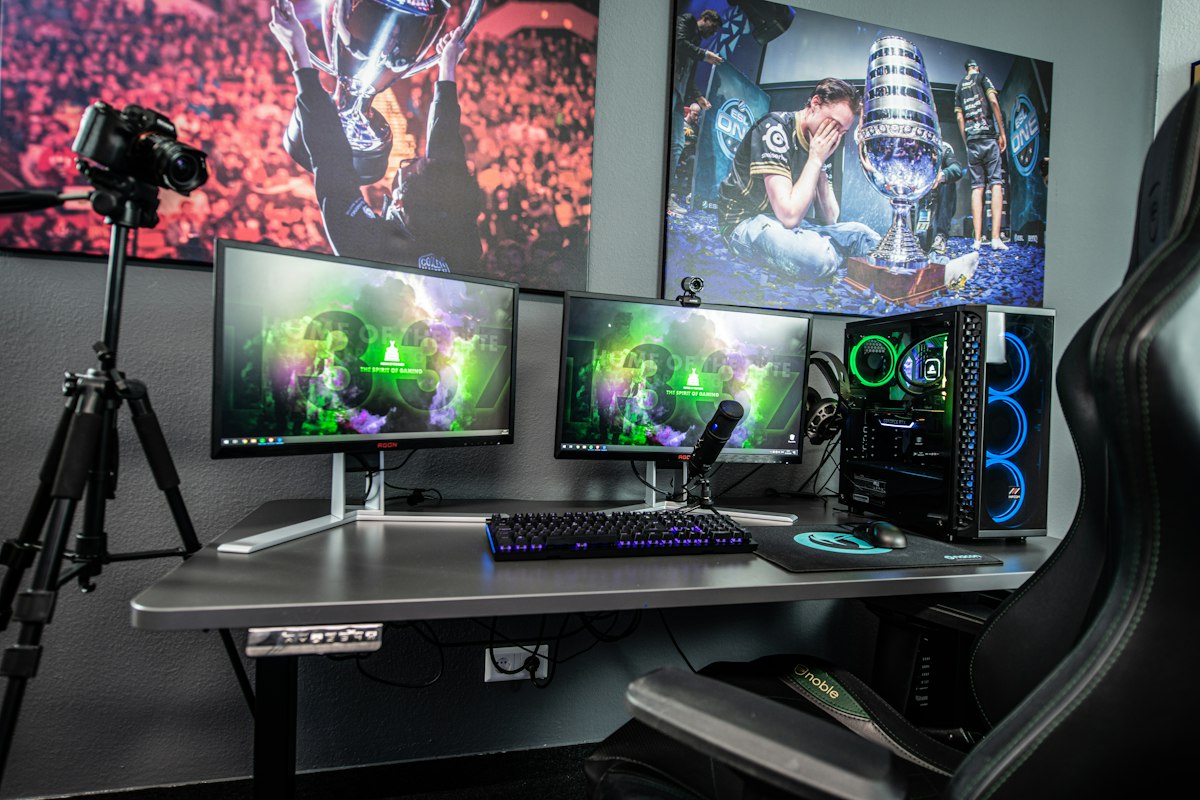
Name the game, the mode or challenge and what makes this video different: “I tried to beat Minecraft without breaking a single block.” Add chapters for big moments and a hashtag with the game’s name.
Put the game’s name in the keyword box and keep hashtags on. Chapters help viewers find the best fights or the ending.

Say what you’re reviewing, how long you’ve used it and what viewers will find out: “My honest Kindle Scribe review after 3 months.” Chapters like Design, Battery and Verdict make reviews easy to scan.
Add the product name as your keyword and choose Point to a link if you share where to buy it. The tool writes [your link] so you can paste your own.

Shorts need only a line or two: what happens and a hashtag or two. Add it in the description box when you upload the Short, or later in YouTube Studio. Links in Shorts descriptions aren’t clickable, so keep it simple.
Pick Short, turn chapters off and keep hashtags on. You’ll get 3 quick descriptions that fit a Short.

A YouTube description can be up to 5,000 characters long. That’s room for a summary, chapters, links and hashtags, but most people only read the start. These YouTube description best practices help viewers and search find your video:
Our generator follows these rules for you, and every description shows its character count so you know it fits. Want a better title too? Try our YouTube title generator.

Links in your description can send viewers to your website, your shop, your other social accounts or the sources you used. Here’s how to add them:
Put your most important link near the top, where people see it without tapping “more”. If you pick Point to a link in our generator, it writes [your link] so you can paste your own address.
Need tags as well? Try our YouTube tag generator.