;} %3C/style%3E%3Cpath class='st0' d='M89.7,52c-2.9,0.1-5.8-0.5-8.4-1.6c-2.1-0.9-4-2.5-5.2-4.4c-1.2-1.9-1.8-4.1-1.8-6.4h7.2c0,1,0.3,2,0.8,2.9 c0.6,1,1.6,1.8,2.7,2.3c1.5,0.6,3.1,0.9,4.8,0.9c1.5,0.1,3.1-0.2,4.5-0.8c1.1-0.4,2-1.1,2.7-2c0.6-0.8,0.9-1.8,0.9-2.9 c0-1.3-0.6-2.5-1.7-3.2c-1.6-1-3.4-1.5-5.3-1.5L87.4,35c-3.2-0.1-6.2-1.3-8.6-3.4c-2.2-2-3.3-4.8-3.2-7.7c-0.1-2.2,0.5-4.4,1.7-6.2 c1.2-1.8,2.8-3.1,4.8-4c4.7-1.9,9.9-1.9,14.6,0.1c2,0.9,3.6,2.4,4.8,4.2c1.2,1.9,1.7,4.1,1.7,6.4H96c0-1-0.2-2-0.7-2.8 c-0.5-0.9-1.3-1.7-2.3-2.1c-1.2-0.6-2.5-0.9-3.8-0.8c-1.2,0-2.5,0.2-3.6,0.8c-0.9,0.4-1.6,1.1-2.1,2C83,22.1,82.8,23,82.8,24 c0,1.1,0.5,2.2,1.3,3c1.1,1,2.6,1.5,4.1,1.5l3.2,0.3c2.4,0.1,4.8,0.7,7.1,1.7c1.9,0.8,3.5,2.1,4.7,3.8c1.2,1.7,1.8,3.7,1.7,5.7 c0,2.2-0.6,4.4-1.9,6.3c-1.3,1.9-3.2,3.3-5.3,4.2C95.2,51.5,92.4,52.1,89.7,52z'/%3E%3Cpath class='st0' d='M124.3,52c-2.2,0-4.5-0.4-6.6-1.2c-1.8-0.7-3.4-1.8-4.8-3.2c-1.3-1.3-2.3-2.9-2.9-4.6c-0.7-1.7-1-3.6-1-5.4 v-1.1c0-1.9,0.3-3.8,1-5.5c1.4-3.6,4.3-6.4,7.9-7.8c2-0.8,4.2-1.2,6.4-1.2c2.2,0,4.4,0.4,6.4,1.2c1.8,0.7,3.5,1.8,4.8,3.2 c1.3,1.3,2.3,2.9,3,4.6c0.7,1.7,1,3.6,1,5.5v1.1c0,1.9-0.3,3.7-1,5.4c-0.7,1.7-1.7,3.3-3,4.6c-1.4,1.4-3,2.5-4.8,3.2 C128.7,51.6,126.5,52,124.3,52z M124.3,45.9c1.5,0.1,3.1-0.4,4.4-1.2c1.2-0.8,2.2-1.9,2.8-3.1c0.7-1.4,1-3,0.9-4.5 c0-1.6-0.3-3.1-1-4.5c-0.6-1.3-1.6-2.4-2.8-3.2c-1.3-0.8-2.8-1.2-4.3-1.2c-1.5,0-3.1,0.4-4.4,1.2c-1.2,0.8-2.2,1.9-2.8,3.2 c-0.7,1.4-1,3-1,4.5c0,1.6,0.3,3.1,1,4.5c0.6,1.3,1.6,2.4,2.8,3.1C121.2,45.5,122.7,45.9,124.3,45.9L124.3,45.9z'/%3E%3Cpath class='st0' d='M157.1,52c-2.2,0-4.3-0.4-6.3-1.2c-1.7-0.8-3.2-1.9-4.4-3.3c-1.2-1.4-2.1-3-2.6-4.7c-0.6-1.7-0.9-3.5-0.9-5.3 v-1c0-1.9,0.3-3.7,0.9-5.4c0.6-1.7,1.5-3.3,2.7-4.6c1.2-1.4,2.7-2.5,4.4-3.2c4.1-1.7,8.7-1.6,12.8,0.2c1.9,0.9,3.5,2.2,4.6,3.9 c1.2,1.7,1.8,3.8,1.9,5.9h-7c-0.2-1.4-0.8-2.6-1.8-3.6c-1.2-1-2.8-1.6-4.3-1.5c-1.4,0-2.7,0.4-3.9,1.1c-1.1,0.8-1.9,1.9-2.4,3.1 c-0.5,1.5-0.8,3-0.8,4.5c0,1.5,0.2,3.1,0.8,4.5c0.4,1.3,1.2,2.4,2.3,3.2c1.2,0.8,2.6,1.2,4,1.1c1.1,0,2.2-0.2,3.2-0.7 c0.9-0.4,1.6-1.1,2.1-1.9c0.6-0.8,0.9-1.7,1-2.7h7c-0.1,2.1-0.8,4.2-2,6c-1.2,1.7-2.8,3.1-4.7,4C161.7,51.6,159.4,52.1,157.1,52z'/%3E%3Cpath class='st0' d='M172.4,28.4V23h11.1v5.4L172.4,28.4z M178.9,19.7c-1.1,0.1-2.3-0.3-3.1-1.1c-0.7-0.8-1-1.8-1-2.8 c0-1,0.3-2,1-2.8c0.8-0.8,2-1.2,3.1-1.1c1.1-0.1,2.3,0.3,3.1,1.1c0.7,0.8,1,1.8,1,2.8c0,1-0.3,2-1,2.8 C181.2,19.4,180,19.8,178.9,19.7z M176.3,51V23h7.2v28H176.3z'/%3E%3Cpath class='st0' d='M197.7,51.7c-1.8,0-3.6-0.3-5.3-1.1c-1.5-0.7-2.7-1.7-3.5-3.1c-0.9-1.5-1.3-3.1-1.3-4.8 c-0.1-1.8,0.4-3.6,1.5-5.1c1.1-1.4,2.6-2.4,4.3-2.9c2.1-0.7,4.3-1,6.5-1h6.4V38h-6.6c-1.4-0.1-2.7,0.3-3.8,1.2 c-1.7,1.7-1.8,4.4-0.1,6.1c0,0,0.1,0.1,0.1,0.1c1.1,0.9,2.4,1.3,3.8,1.2c0.9,0,1.9-0.2,2.8-0.5c0.9-0.4,1.6-1,2.1-1.8 c0.6-1.1,0.9-2.3,0.9-3.6l1.8,2c-0.1,1.8-0.6,3.5-1.4,5c-0.7,1.3-1.9,2.4-3.2,3.1C201.2,51.4,199.4,51.8,197.7,51.7z M206.7,51v-8.3 h-1.2v-9.2c0.1-1.3-0.3-2.6-1.2-3.6c-1-0.9-2.3-1.3-3.6-1.2c-0.9,0-1.9,0-3.1,0l-3.6,0.1c-1.2,0.1-2.3,0.1-3.3,0.2v-6l2.6-0.2 c1-0.1,2-0.1,3.1-0.1s2.1,0,3,0c2.4-0.1,4.9,0.3,7.2,1.1c1.8,0.7,3.3,1.9,4.3,3.5c1.1,2,1.6,4.2,1.5,6.4V51L206.7,51z'/%3E%3Cpath class='st0' d='M215.3,18.7v-5.4H226v5.4H215.3z M218.8,51V13.4h7.2V51H218.8z'/%3E%3Cpath class='st1' d='M232.8,51V13.1h7.3V51H232.8z M239.1,39.5v-6.3h7.3c1.3,0,2.6-0.3,3.7-0.9c1-0.6,1.8-1.4,2.4-2.4 c0.6-1.1,0.8-2.3,0.8-3.5c0-1.3-0.3-2.5-0.8-3.6c-0.5-1-1.3-1.8-2.4-2.4c-1.1-0.6-2.4-0.9-3.7-0.9h-7.3v-6.3h6.7 c2.8-0.1,5.5,0.4,8.1,1.5c2.1,0.9,3.9,2.5,5.1,4.4c1.2,2.1,1.8,4.4,1.8,6.8v0.8c0.1,2.4-0.5,4.7-1.8,6.8c-1.2,2-3,3.5-5.1,4.4 c-2.5,1.1-5.3,1.6-8.1,1.5L239.1,39.5z'/%3E%3Cpath class='st1' d='M271.8,51.7c-1.8,0-3.6-0.3-5.3-1.1c-1.5-0.7-2.7-1.7-3.5-3.1c-0.9-1.5-1.3-3.1-1.3-4.8 c-0.1-1.8,0.4-3.6,1.5-5.1c1.1-1.4,2.6-2.4,4.3-2.9c2.1-0.7,4.3-1,6.5-1h6.4V38h-6.5c-1.4-0.1-2.7,0.3-3.8,1.2 c-1.7,1.7-1.8,4.4-0.1,6.1c0,0,0.1,0.1,0.1,0.1c1.1,0.9,2.4,1.3,3.8,1.2c0.9,0,1.9-0.2,2.8-0.5c0.9-0.4,1.6-1,2.1-1.8 c0.6-1.1,0.9-2.3,0.9-3.6l1.8,2c-0.1,1.8-0.6,3.5-1.4,5c-0.7,1.3-1.9,2.4-3.2,3.1C275.2,51.4,273.5,51.8,271.8,51.7z M280.8,51v-8.3 h-1.2v-9.2c0.1-1.3-0.3-2.6-1.2-3.6c-1-0.9-2.3-1.3-3.6-1.2c-0.9,0-1.9,0-3.1,0l-3.6,0.1c-1.2,0.1-2.3,0.1-3.3,0.2v-6l2.6-0.2 c1-0.1,2-0.1,3.1-0.1s2.1,0,3,0c2.4-0.1,4.9,0.3,7.2,1.1c1.8,0.7,3.3,1.9,4.3,3.6c1.1,2,1.6,4.2,1.5,6.4V51L280.8,51z'/%3E%3Cpath class='st1' d='M292.6,51V23h5.7v12h-0.5c-0.1-2.4,0.3-4.9,1.1-7.1c0.6-1.8,1.8-3.3,3.4-4.3c1.7-1,3.6-1.5,5.6-1.5h0.3 c3.3,0,5.9,1.1,7.6,3.2s2.6,5.4,2.6,9.6v16h-7.2V34.3c0.1-1.5-0.5-3-1.5-4.2c-1-1.1-2.5-1.7-4-1.6c-1.6-0.1-3.1,0.5-4.3,1.6 c-1.1,1.2-1.7,2.7-1.6,4.3V51H292.6z'/%3E%3Cpath class='st1' d='M336.2,51.9c-1.9,0-3.7-0.3-5.4-1.1c-1.6-0.7-3.1-1.7-4.3-3c-1.2-1.3-2.2-2.9-2.8-4.6c-0.7-1.8-1-3.7-1-5.7 v-1.1c0-1.9,0.3-3.8,0.9-5.6c0.6-1.7,1.5-3.3,2.7-4.6c1.2-1.3,2.6-2.4,4.2-3.1c1.7-0.8,3.6-1.1,5.4-1.1c2,0,4,0.4,5.8,1.4 c1.7,1,3.1,2.5,4,4.2c1.1,2.2,1.6,4.7,1.6,7.1l-2.1-2.4V13.4h7.2V51h-5.7V39.2h1.3c0,2.5-0.6,4.9-1.8,7.1c-1,1.8-2.4,3.3-4.2,4.3 C340.2,51.5,338.2,52,336.2,51.9z M337.8,45.9c1.3,0,2.7-0.3,3.9-1c1.2-0.7,2.1-1.6,2.8-2.8c0.7-1.3,1.1-2.8,1.1-4.3v-2.1 c0-1.5-0.3-2.9-1.1-4.1c-0.7-1.1-1.7-2-2.8-2.6c-1.2-0.6-2.5-0.9-3.8-0.9c-1.4,0-2.9,0.4-4.1,1.1c-1.2,0.8-2.2,1.8-2.8,3.1 c-0.7,1.5-1,3.1-1,4.7c0,1.6,0.3,3.2,1,4.7c0.6,1.3,1.6,2.3,2.8,3.1C334.9,45.6,336.3,45.9,337.8,45.9L337.8,45.9z'/%3E%3Cpath class='st1' d='M367,51.7c-1.8,0-3.6-0.3-5.3-1.1c-1.5-0.7-2.7-1.7-3.5-3.1c-0.9-1.5-1.3-3.1-1.3-4.8c-0.1-1.8,0.4-3.6,1.5-5.1 c1.1-1.4,2.6-2.4,4.3-2.9c2.1-0.7,4.3-1,6.5-1h6.4V38H369c-1.4-0.1-2.7,0.3-3.8,1.2c-1.7,1.7-1.8,4.4-0.1,6.1c0,0,0.1,0.1,0.1,0.1 c1.1,0.9,2.4,1.3,3.8,1.2c0.9,0,1.9-0.2,2.8-0.5c0.9-0.4,1.6-1,2.1-1.8c0.6-1.1,0.9-2.3,0.9-3.6l1.8,2c-0.1,1.8-0.6,3.5-1.4,5 c-0.7,1.3-1.8,2.3-3.1,3C370.4,51.4,368.7,51.8,367,51.7z M376,51v-8.3h-1.2v-9.2c0.1-1.3-0.3-2.6-1.2-3.6c-1-0.9-2.3-1.3-3.6-1.2 c-0.9,0-1.9,0-3.1,0l-3.6,0.1c-1.2,0.1-2.3,0.1-3.3,0.2v-6l2.7-0.2c1-0.1,2-0.1,3.1-0.1s2.1,0,3,0c2.4-0.1,4.9,0.3,7.2,1.1 c1.8,0.7,3.3,1.9,4.3,3.6c1.1,2,1.6,4.2,1.5,6.4V51L376,51z'/%3E%3Cg id='_Group_'%3E%3Cpath class='st0' d='M23.3,0h17.3c12.9,0,23.3,10.4,23.3,23.3v17.3c0,12.9-10.4,23.3-23.3,23.3H23.3C10.4,63.9,0,53.4,0,40.6V23.3 C0,10.4,10.4,0,23.3,0z'/%3E%3C/g%3E%3Cg id='_Group_2'%3E%3Cpath class='st2' d='M63.9,35.7v4.9c0,12.9-10.4,23.3-23.3,23.3H29L11.5,46.3L52,24L63.9,35.7z'/%3E%3C/g%3E%3Cpath class='st1' d='M31.9,52.8c-7,0-12.2-1-16.1-3.1c-2.4-1.2-4.4-3-5.8-5.3c-1.5-2.5-2.2-5.3-2.1-8.2c0-6,2.6-11.8,7.2-15.8 c4.6-4.2,10.7-6.4,16.9-6.4c6.2,0,12.2,2.2,16.9,6.4c4.5,4,7.2,9.7,7.2,15.8c0.1,2.9-0.7,5.7-2.1,8.2c-1.4,2.3-3.4,4.1-5.8,5.3 C44.2,51.7,38.9,52.8,31.9,52.8z'/%3E%3ClinearGradient id='SVGID_1_' gradientUnits='userSpaceOnUse' x1='18.6133' y1='42.5239' x2='46.8733' y2='18.1239' gradientTransform='matrix(1 0 0 -1 0 66)'%3E%3Cstop offset='0' style='stop-color:%23FFFFFF'/%3E%3Cstop offset='0.57' style='stop-color:%23FDFDFD'/%3E%3Cstop offset='0.84' style='stop-color:%23F5F5F5'/%3E%3Cstop offset='1' style='stop-color:%23ECECEC'/%3E%3C/linearGradient%3E%3Cpath class='st3' d='M52.4,36.1c0,10.2-9.1,13-20.4,13s-20.4-2.8-20.4-13s9.1-18.5,20.4-18.5S52.4,25.9,52.4,36.1z'/%3E%3Cpath class='st1' d='M36.2,40.3c0,1.5-1.9,2.8-4.2,2.8s-4.2-1.3-4.2-2.8s1.9-1.9,4.2-1.9S36.2,38.8,36.2,40.3z'/%3E%3Cpath class='st1' d='M44.2,28.9c-2.8-2.8-6.6-3.5-8.4-1.7s0,4.5,2.8,7.3s5.5,4.7,7.3,2.8S47,31.7,44.2,28.9z'/%3E%3Cpath class='st1' d='M50.9,13.4c-3.6-2.8-8.1-3.1-10-0.7s0.7,5.2,4.3,8s7,4.5,8.8,2.1S54.5,16.2,50.9,13.4z'/%3E%3Cpath class='st1' d='M13,13.4c3.6-2.8,8.1-3.1,10-0.7s-0.7,5.2-4.3,8s-7,4.5-8.8,2.1S9.3,16.2,13,13.4z'/%3E%3Cpath class='st1' d='M19.6,28.9c-2.8,2.8-3.5,6.6-1.7,8.4s4.5,0,7.3-2.8s4.6-5.5,2.8-7.3S22.4,26.1,19.6,28.9z'/%3E%3C/svg%3E)
There are two ways to add a resume to LinkedIn. Upload it to the Featured section of your profile if you want anyone to download it. Save it in your job application settings if you want it private and ready for Easy Apply. The first takes about two minutes and the second about one.
This guide shows how to add resume to LinkedIn step by step, on desktop and in the app. It also covers which method fits you and how to protect your privacy. Finally, it shows how to prepare the file so recruiters and screening software can read it.
Why should you add your resume to LinkedIn?
Adding your resume to LinkedIn saves recruiters a step and saves you time when you apply. A recruiter can download a PDF and forward it to a hiring manager in seconds. You can also reuse a saved file across many Easy Apply jobs.
The volume of applications on LinkedIn is huge. LinkedIn’s About page reported more than 1.4 billion members and about 9,000 job applications every minute in November 2026. In a pile that size, a clean, ready-to-forward resume makes you easier to shortlist.
A visible resume also signals that you are organised and open to conversations. Your profile tells your story in short sections. Your resume gives the full detail, in the format most hiring teams still use.
Which method should you use: public or private?
Use the public Featured method if you are freelancing, between jobs or openly looking. Use the private job application settings if you are employed and searching quietly. Many job seekers use both, with a slightly different version in each place.
| Factor | Featured section (public) | Job application settings (private) |
|---|---|---|
| Who can see it | Anyone who views your profile | Only employers you send an application to |
| Best for | Freelancers, people between jobs, open job seekers | People who are employed and searching quietly |
| Works with Easy Apply | No, it is a profile item | Yes, it can be your default resume |
| Privacy risk | Higher, contact details can be copied | Low |
| Chance your boss sees it | Real, if they visit your profile | Very low |
| File formats | PDF, DOC or DOCX | PDF or Word, up to 2 MB |
How to add resume to LinkedIn through the Featured section
To add your resume to the Featured section, open your profile and choose Add profile section. Then pick Recommended, then Add featured, and upload the file as media. The resume then sits near the top of your profile as a clickable preview.
- Click Me at the top of LinkedIn and choose View profile.
- Click Add profile section below your name and headline.
- Open Recommended and choose Add featured.
- Click the + icon and select Add media.
- Pick your resume file from your computer or phone.
- Add a clear title, such as “Product Designer Resume 2026”, and a one-line description.
- Click Save, then view your profile as a visitor to check that the file opens.
If you already have a Featured section, skip steps 2 and 3. Click the + next to Featured instead. In the LinkedIn mobile app, the path is the same: tap your photo, open your profile, then tap Add section.
How do I add my resume to LinkedIn privately for Easy Apply?
To add your resume privately, open your job application settings and upload the file under your saved resumes. Nobody sees it on your profile. LinkedIn only shares it with employers when you apply through Easy Apply.
- Click Me and open Settings & Privacy.
- Go to Data privacy, then Job application settings.
- Under your saved resumes, click Upload resume.
- Choose a PDF or Word file under 2 MB.
- Check that the setting to save resumes and answers for future applications is on.
You can also reach the same screen from the Jobs tab through your job preferences. A guide from Final Draft Resumes, updated September 2026, notes that LinkedIn stores up to four resumes here. The most recent upload becomes your default for Easy Apply.
When you press Easy Apply on a job, LinkedIn shows your saved resumes. Pick the version that fits the role, or upload a new one inside the application. Keep a general version and two or three tailored ones for different job types.
How should you prepare your resume before uploading it?
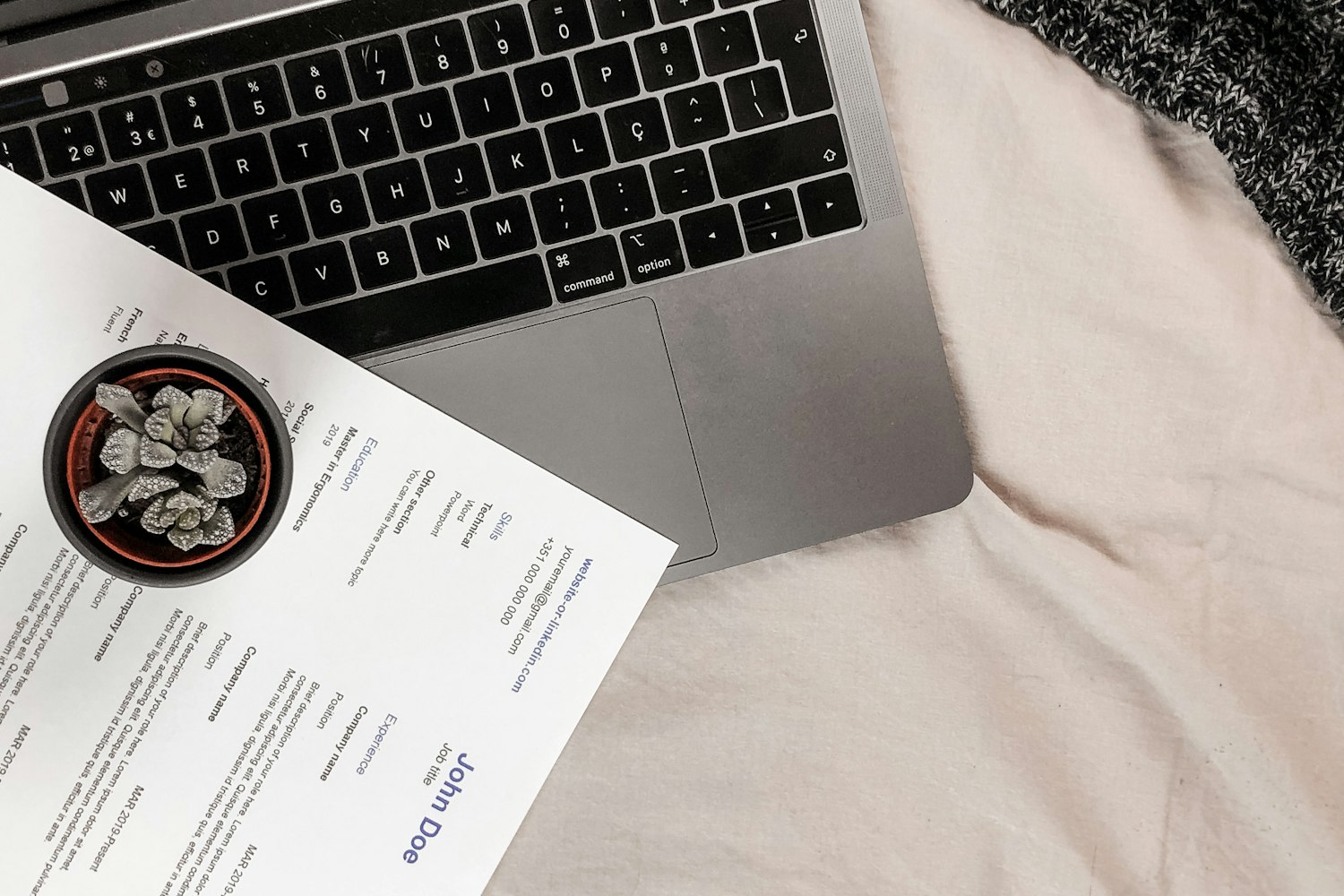
Prepare your resume so it matches your LinkedIn profile and reads cleanly in applicant tracking systems. Recruiters compare the two side by side. Screening software looks for job titles, skills and keywords from the job description.
- Match your dates and titles. Your resume and LinkedIn profile should show the same employers, roles and dates.
- Use words from job ads. Copy the exact skill names employers use, such as “Google Analytics” or “account management”.
- Pick a simple layout. One column, standard headings and common fonts are easiest for software to read.
- Save as PDF. A PDF keeps your layout the same on every device.
- Check contact details. Make sure your email and phone number are current.
Should you use a resume template or a custom design?
Use a simple template for the resume you upload to LinkedIn. Heavy designs with columns, icons, text boxes and graphics often confuse applicant tracking systems. The software may skip sections or mix up your dates.
If you are a designer, keep your creative work separate. Add your portfolio as its own Featured item or link. That way the resume stays easy to scan, and your visual skills still get attention.
How do you update or replace your resume later?
LinkedIn does not overwrite an uploaded file, so you replace a resume by deleting the old one and uploading the new one. The steps differ slightly between the two methods.
- Featured section: click the pencil icon on Featured, open the old resume, choose delete, then add the new file as media.
- Job application settings: open the three-dot menu next to the old file and delete it. Then upload the new version.
Update your resume whenever you change jobs, finish a big project or earn a new certificate. Update your LinkedIn profile on the same day, so the two stay in sync.
How does Open to Work help your uploaded resume?
Open to Work tells recruiters you are available, which brings more people to your profile and your resume. You turn it on from the Open to button on your profile and add the job titles, locations and work types you want.
LinkedIn gives two visibility choices. “All LinkedIn members” adds the green #OpenToWork frame to your photo. The recruiters-only choice hides the frame and shows your status to recruiters using LinkedIn Recruiter. LinkedIn tries to hide it from recruiters at your own company, but it cannot fully guarantee that.
What mistakes should you avoid?
- Vague file names such as “CV.pdf” that get lost in a download folder.
- Listing references or “references available on request”. It wastes space.
- Typos in your name, job titles or company names.
- Dates that do not match your LinkedIn experience section.
- A home address on a public resume.
- An old file left as your Easy Apply default after you update your resume.
How can you get more recruiters to see your profile?
Recruiters find people through search, shared connections and activity in the feed. A resume only helps once someone lands on your profile. So keep your profile active while you look for work.
Comment on posts in your industry a few times a week. Share a short post that says you are open to new roles and names the jobs you want. Ask former colleagues for one or two recommendations that mention specific results. If you run your own business, also set up a LinkedIn Company Page and link it from your experience section.
Network size matters too. More connections means more second-degree contacts, and that widens the pool of recruiters who can find you in search. SocialPanda delivers LinkedIn connections from real accounts and real LinkedIn followers for your profile. You only share your profile link, never your password, and SocialPanda refills any that drop. Low-quality bot services send fake accounts in sudden spikes that look unnatural and often vanish.
For a broader push across your whole profile, the SocialPanda LinkedIn growth service combines connections, followers and engagement in one plan.
Recruiters find you faster with a bigger network and active posts. See our guides on growing your LinkedIn connections and increasing engagement on LinkedIn.
FAQ
Should I upload my resume to LinkedIn as a PDF or Word file?
Upload a PDF in most cases. LinkedIn accepts PDF and Word files, but a PDF keeps your fonts, spacing and layout the same on every screen. Word files can shift when opened on a different device. Keep the file under 2 MB for job application settings.
Will my employer know I uploaded a resume to LinkedIn?
Not if you use job application settings. That resume stays private and only goes to employers you apply to. A resume in your Featured section is different. Anyone who visits your profile can open it, including your manager and colleagues.
How many resumes can I save on LinkedIn?
LinkedIn’s job application settings store up to four resumes, according to Final Draft Resumes in September 2026. The latest upload becomes your Easy Apply default. To add a fifth, delete an older version first. The Featured section has no fixed resume limit, but one public version is clearer.
How do I delete a resume from LinkedIn?
For a private resume, open Settings & Privacy, go to Data privacy, then Job application settings, and delete the file from the three-dot menu. For a public one, click the pencil icon on your Featured section, open the resume and choose delete.
Can I add my resume to LinkedIn from the mobile app?
Yes. In the LinkedIn app, tap your photo, open your profile and tap Add section to reach Featured. You can also upload a resume inside an Easy Apply application on your phone. The file needs to be saved on your phone or in a cloud drive first.
Want 15% off your first order?
Get tips like this one and your welcome code by email.
✓
One code per person. No spam, unsubscribe anytime.